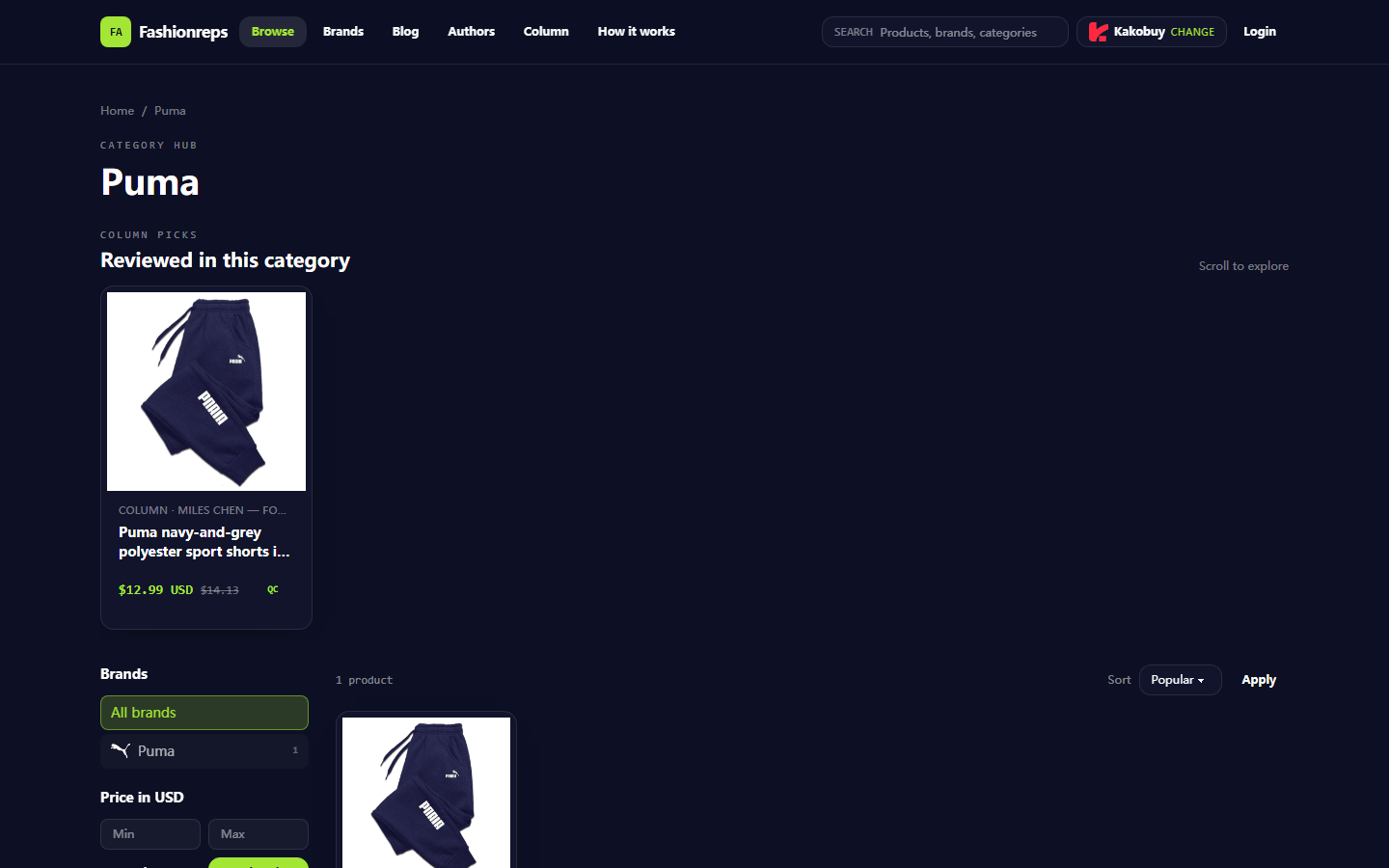
After purchasing Puma items on fashionreps, if checkout is complete but the order status hasn't changed, don't rush to pay again or assume the platform or product page is broken. fashionreps pages show that purchases redirect to an external shopping agent of your choice, and the agent's website handles orders, payments, and shipping. So troubleshooting focuses on confirming which system the order was created in, whether payment succeeded, and whether different pages show the same transaction. 🔎
This article addresses only one issue: Puma order status not updating promptly after checkout. After troubleshooting, you should be able to determine whether it's a sync delay, payment failure, order not yet created, or duplicate payment risk. This does not apply if you've already received a refund, your account is restricted from logging in, or you need help with customs or after-sales returns.

How Puma Order Status Not Updating Appears and Troubleshooting Scope
Common signs: payment page shows complete, but agent account's order list has no new record; order list shows a record but no payment confirmation; checkout page stuck on processing; email receipt differs from account page in amount, item name, or order number.
First, distinguish two pages: fashionreps is mainly for discovering items and entering the purchase entry point; the external shopping agent handles order receipt, payment, and shipping. The reference price on the item page should not be taken as the final amount due, because the agent may add service fees, domestic shipping, exchange rate differences, or other charges. 💳
First Check fashionreps Item, Order Number, and Current Payment Records
Open the Puma item page you originally used for checkout and verify: item name, category, size/spec, product image, reference price, and the shopping agent you selected. The item page shows source info for verification, not the official order in your agent account.
Then go back to the agent website and confirm you're logged into the same account and region environment used at checkout. Don't judge status from old browser tabs, and don't continue payment after switching between multiple agent accounts.
Keep a minimal checklist:
| Item to Check | What to Record | If Mismatched |
|---|---|---|
| Item Info | Puma item name, spec, quantity | Pause payment and reconfirm on item page |
| Agent Account | Agent name, account ID, login time | Log out of other accounts and confirm current one |
| Order Info | Order number, creation time, amount | Don't pay again if no order number |
| Payment Info | Method, amount, currency, transaction status | Cross-check payment channel and agent order page |
If fashionreps shows only item info and the agent account has no order number, don't treat clicking the checkout button as order creation.
Cross-Check Payment Page, Account Order Page, and Email Notifications
Check in order: payment page, account order page, email notifications. Don't resubmit immediately if one page hasn't updated.
Step 1: Check payment channel transaction details. Confirm if the transaction is completed, pending, failed, canceled, or just an authorization. Record amount, currency, time, merchant/agent name, and transaction ID from the payment channel. Don't share full card number, verification code, password, or full payment slip.
Step 2: Check the agent account's order page. Match using order number, creation time, item name, and amount. If an order appears but status is pending confirmation, keep it and wait for system processing; don't create a new order for the same item.
Step 3: Check email or in-site notifications linked to the agent account. Emails may only mean the payment channel accepted the transaction, not that the order entered procurement. If the email order number differs from the account order page, save both and confirm ownership via the agent's official support channel.
The most reliable evidence combo: at least two of payment transaction record, agent order page, and order confirmation notification match in amount and time. If none match, stop further actions. 📩
How to Tell Waiting, Failed, and Duplicate Payment Risk
Waiting status: payment channel still processing, agent order hasn't been assigned a formal order number, or account page says syncing. Keep time records, close duplicate checkout pages, and wait for the agent's published processing window.
Failed status: clear failed, canceled, chargeback, or incomplete messages. If the payment channel deducted money but the agent order shows failed, don't pay again yourself; first confirm if the original transaction will be auto-reversed or refunded.
Duplicate payment risk: browser back button resubmits, multiple tabs checkout simultaneously, account page slow loading leads to repeated payment clicks, first transaction had no clear confirmation but payment channel has a record. If the payment channel has a pending or completed transaction, treat any new payment as high risk. ⚠️
Safe Order for Browser Refresh, Re-login, and Time Recording
Recommended order:
- Screenshot and save current page's visible order status and time, covering email, address, phone, payment card info, and sensitive order fields.
- Close duplicate payment tabs, keep only order list or transaction record page.
- Use in-page refresh once to check status; don't refresh continuously or click submit repeatedly.
- Log out of agent account and log back in, confirm same account and correct site.
- Recheck order list, in-site notifications, and email; don't create a new order just because one page hasn't changed.
- Record time, page name, displayed status, and order number for each action, forming a timeline.
If status still inconsistent after re-login, prioritize keeping existing order and payment evidence. Don't clear all browsing history or delete emails, as they may help support locate the transaction.
What Page Evidence to Save When Order Info Is Inconsistent
When saving evidence, focus on "which transaction, in which account, when, and what result." At minimum keep:
- fashionreps Puma item page's item name and reference price;
- The shopping agent name selected at checkout;
- Agent account order list page;
- Order details: order number, item, amount, currency, creation time;
- Payment channel transaction status and transaction ID;
- Agent's order confirmation or failure notification;
- Status change time before/after re-login.
Screenshots should only include info needed for verification. Cover address, phone, email, card number, verification code, and full shipping label, but don't hide the correspondence between order status, amount, currency, time, and order number.
When to Stop Duplicate Payments and Contact Official Support
Stop paying if any of these occur:
- Payment channel shows pending or completed;
- Agent account already has an order with same item, amount, or nearby time;
- Payment page errors but can't confirm if transaction submitted;
- Email notification order number differs from account order page;
- Page asks for payment again without explaining previous transaction outcome;
- After repeated refreshes, still can't confirm if order was created.
Contact support via the agent website's official help section in your account or their public customer service channels. Provide item name, order number, payment time, amount, currency, payment status, and page display result, plus evidence with private info covered. Don't send passwords, payment verification codes, full card info, or full personal shipping labels. If support can't confirm the original transaction, don't pay again based on a vague reply.
After Troubleshooting: Order Confirmation and Follow-Up Action Checklist
Only when order number, account, amount, and payment status match can you consider the order ready for follow-up. Save the final order page and note when to check next.
If waiting: keep original order, wait for the agent's processing window, don't create duplicates.
If payment failed and no deduction: save failure evidence, reconfirm item and account, then decide whether to resubmit.
If deducted but order missing: stop paying, contact agent support to confirm transaction ownership and arrange refund or crediting.
If two or more transactions: don't cancel one yourself; let agent and payment channel confirm which are completed and which can be reversed.
This verification method may save time on duplicate payments and refunds, but adds waiting and evidence organization time. It suits buyers with unclear payment status, delayed order pages, or inconsistent info across pages; not for those with confirmed refunds, restricted accounts, or logistics/customs issues. Before finishing, the most important actions are: keep original transaction, stop repeated submissions, and let the actual shopping agent confirm the result. ✅